Forms & Surveys
Part of Visitor management software
Checking accessibility at a self-service check-in
Check the full visitor kiosk journey, including input, errors, physical placement and an assisted reception route.
Trace one visitor’s complete journey on every route offered: installed kiosk, web or mobile, through confirmation or reception assistance. Test the normal path, wrong input, a host not found and an optional step declined; record what the visitor sees and whether the route reaches its intended outcome.
Prepare a representative arrival
Create a fictional walk-in route with a required name, host choice, optional question and final confirmation. Add a contractor route only if the site plans to use it. For each screen, record the intended outcome and what should happen if someone enters a wrong value, cannot find the host or declines an optional step.
If using Envoy, include its iPad walk-in route, which is available on all plans. For invited visitors, test an exact name-and-email match and a mismatch: Envoy says invites must match exactly, and nicknames or typos do not match. For returning visitors, check full-name recognition and the “Is this you?” prompt with its masked email or phone number.
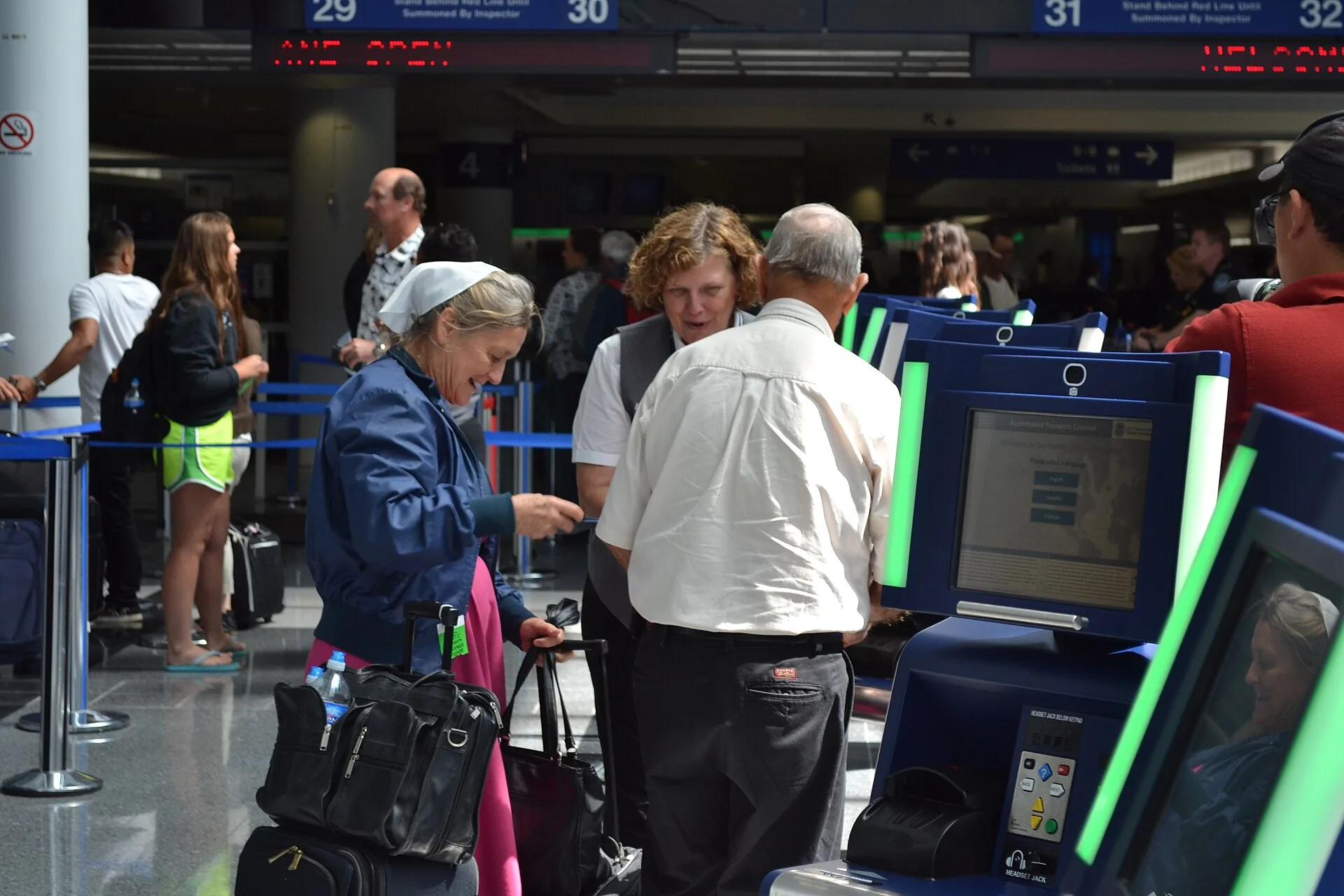
Inspect the installed device’s reach, sight line, glare, room noise and privacy from people waiting behind. Check screen contrast and legibility against the background in the installed lighting, including glare, and whether someone can use it without holding it. These are site decisions; a supplier’s accessibility statement cannot establish the result for your installation.
Follow every step
Use the equipment and assistance methods the site proposes. At each step, compare what happens with the expected outcome; note whether an error is identified, explained and corrected, or needs reception assistance.
- On a web route, try every step with a keyboard. Check focus order, visible focus and whether any control traps the user. If the kiosk offers no usable keyboard route, record that barrier and examine the staffed route.
- Where supported, use a screen reader on the relevant web, mobile or kiosk route. Listen for field names, host choices, required instructions, errors and confirmation.
- Enlarge text using settings available to visitors. Look for clipped questions, notices and buttons.
- Leave a required answer blank and enter an invalid value. Check whether text identifies the affected field, explains the correction and preserves earlier work.
- Complete the arrival without a smartphone or QR code. Check how staff provide the necessary information, contact the host and record the visit.
WCAG 2.2 is a W3C Recommendation for web content on devices including kiosks and mobile devices. Its success criteria are testable statements; use them for digital content and assess physical placement and the staffed reception process separately.
Accessibility NSW strongly recommends WCAG 2.2 Level AA. The Disability Discrimination Act 1992 (Cth) requires Australian Government agencies to ensure information and services are provided in a non-discriminatory and accessible manner.
For automated web checks, Digital NSW names Google Lighthouse, Accessibility Insights, Wave and Experte as popular free tools. Automated testing is a first step and must be supplemented with manual testing; review the results, fix issues and run the checks again.
Where the route supports keyboard input, use Tab and Shift+Tab to move through links and form controls. Check that every item is reachable and focus is visible; use Enter on links or buttons, Space on checkboxes or dropdowns, arrow keys to move through lists, and Escape to dismiss dialogs.
Where available for the web or mobile route, test with a screen reader such as VoiceOver, NVDA or JAWS. Check that fields, choices, error messages and confirmation can be navigated and understood.
Check the assisted hand-off
Define how reception will help a visitor who cannot complete self-service: who enters information, how any collection notice and site instructions are communicated, and how the host is contacted. If a document acknowledgement is required, confirm an appropriate way to complete it rather than silently skipping the step.
Envoy’s dashboard route for creating entries is available on Premium and Enterprise plans. Staff can send a host notification and print a visitor badge from that route; confirm reception can complete every step the site requires through its chosen method.
During a trial, record the route, device, input method, expected outcome and barrier. Invite people with relevant access needs to review the experience where possible. Recheck the route after changes and keep a staffed alternative while an essential barrier remains.